🏫Atal Tinkering Lab Equipment List: A Practical Guide for Schools (Budget Tiers, Layout & Safety)
A practical Atal Tinkering Lab guide for principals, ATL in-charges and teachers: equipment categories, a starter list in basic, standard and advanced tiers, lab layout, safety, storage and session plans for Class 6–12.
In this article (16)
- What is an Atal Tinkering Lab?
- Atal Tinkering Lab equipment list by category
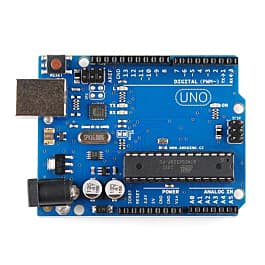
- Microcontroller boards: which to buy
- Sensors that get used the most
- A practical starter list by budget tier
- Atal Tinkering Lab layout
- Safety and storage
- How to run sessions across classes
- Hands-on: a first session plan (automatic night lamp)
- How Thinking Robot can help
- Frequently asked questions
- Which schools can set up an Atal Tinkering Lab with AIM support?
- Can a school build a tinkering lab without the ATL grant?
- Do we need a 3D printer from day one?
- Which microcontroller should an ATL start with?
- How many students can share one kit?
Planning your Atal Tinkering Lab equipment list is the point where many schools get stuck: catalogues are long, budgets are fixed, and it is hard to know what students will actually use every week. This guide is written for principals, ATL in-charges and teachers in India. It explains what an ATL is, the six equipment categories, a starter list in three budget tiers, a sample room layout, safety and storage rules, and how to run sessions from Class 6 to 12.
An Atal Tinkering Lab needs six groups of equipment: electronics and robotics kits, microcontroller boards, sensors and modules, 3D printing, hand tools with measuring instruments, and safety and storage gear. Buy enough basic kits for every team first, put safety gear in place before any hot or powered tools, and add advanced machines only when students are ready for them. Always check the current official guidelines before you buy.
What is an Atal Tinkering Lab?
An Atal Tinkering Lab (ATL) is a dedicated workspace inside a school where students build working prototypes with electronics, robotics, 3D printing and hand tools. ATLs are an initiative of the Atal Innovation Mission under NITI Aayog, and are meant to build curiosity, design thinking and problem-solving in students from Class 6 to 12.
AIM supports selected schools to set up and run these labs. Which schools can apply, how much support is available, how it is released and what the school must report all depend on the guidelines in force when you apply, and these have changed over time. Read the latest ATL guidelines and notices on aim.gov.in before planning a purchase. Any school can also build a similar tinkering lab with its own funds; the equipment advice below applies either way.
Atal Tinkering Lab equipment list by category
The official ATL guidelines have included an indicative equipment list. Use it as your reference, and use the tables below to understand what each category is for and how it is used in class.
| Category | Examples | What students learn | Typical start |
|---|---|---|---|
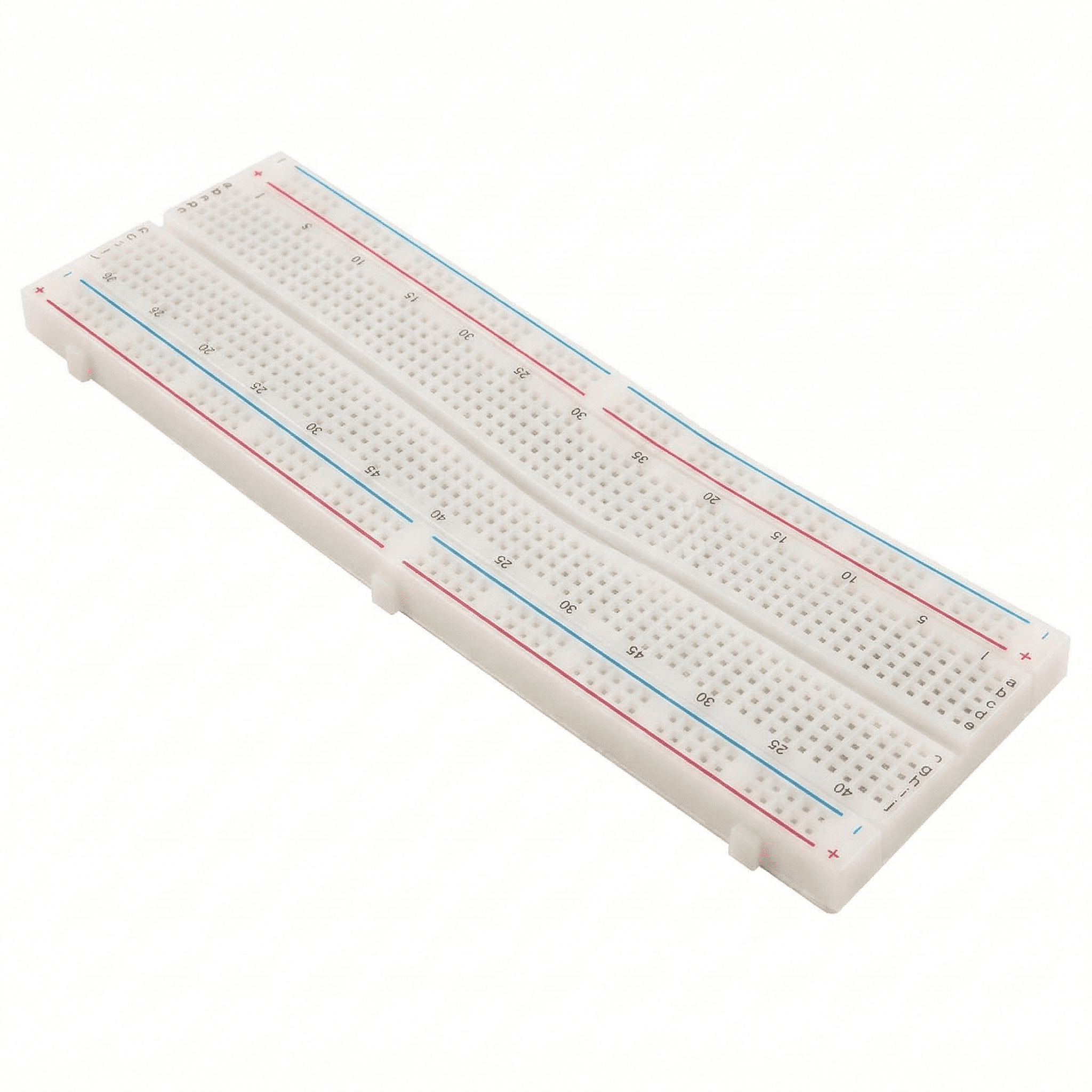
| Electronics and robotics kits | Breadboard kits, LEDs, resistors, motors, robot car chassis | Circuits, motion, teamwork | Class 6 |
| Microcontroller boards | Arduino Uno-compatible, ESP32, Raspberry Pi Pico | Coding, automation, IoT | Class 7–8 |
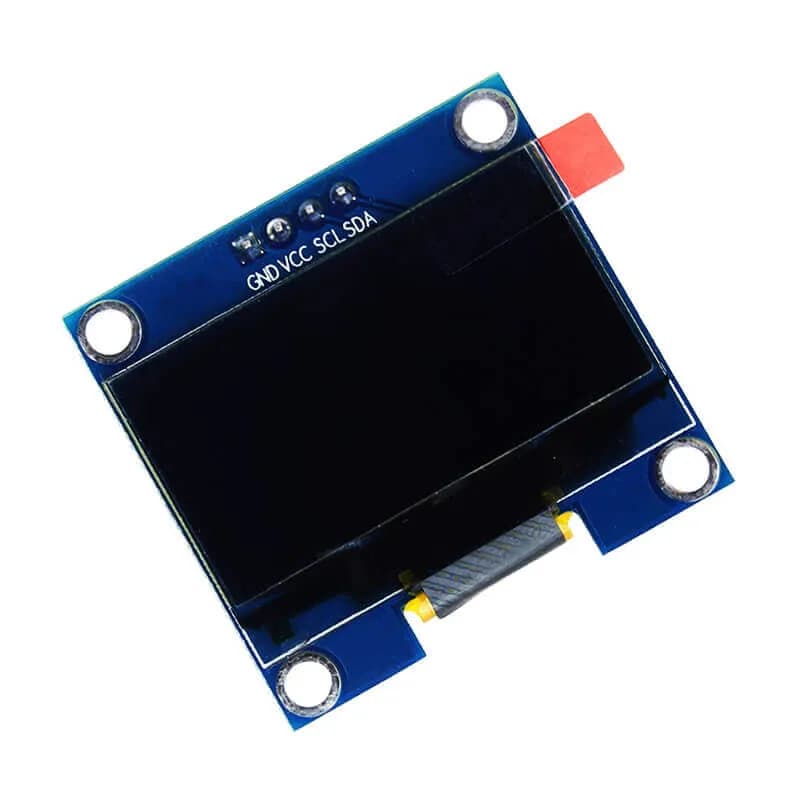
| Sensors and modules | Ultrasonic, IR, light, soil moisture, temperature, displays | Measuring the real world | Class 7–8 |
| 3D printing and design | 3D printer, filament, free CAD software | Design, prototyping, iteration | Class 8 |
| Tools and measurement | Multimeters, cutters, strippers, screwdrivers, glue guns, soldering stations | Making things properly | Class 6 (hand tools) |
| Safety and storage | Goggles, first-aid kit, fire extinguisher, labelled bins, cabinets | Responsibility and care | Day one |
Microcontroller boards: which to buy
| Board | Best for | Notes |
|---|---|---|
| Arduino Uno (or compatible) | First coding projects, Class 7+ | 5 V logic, works with most beginner modules; huge set of official tutorials |
| ESP32 | Wi-Fi and Bluetooth (IoT) projects, senior classes | 3.3 V logic, so 5 V sensors need level shifting |
| Raspberry Pi Pico | MicroPython coding | Low cost; Python skills carry into higher classes |
| Raspberry Pi (single-board computer) | Cameras, AI, Linux, servers | A full computer — see the Raspberry Pi documentation |
If you are new to these boards, our comparison of Arduino vs ESP32 vs Raspberry Pi Pico explains the differences in detail.
Sensors that get used the most
| Sensor or module | Measures | Classic student project |
|---|---|---|
| HC-SR04 ultrasonic | Distance | Smart dustbin, obstacle-avoiding robot |
| IR obstacle / line sensor | Reflected infrared | Line-following robot |
| LDR | Light level | Automatic street light |
| Soil moisture sensor | Water in soil | Automatic plant waterer |
| DHT11 / DHT22 | Temperature and humidity | Weather station |
| MQ-2 gas sensor | Smoke and LPG | Gas leak alarm (test with incense smoke only) |
| PIR | Human movement | Intruder alarm |
| SG90 servo, 16×2 LCD (outputs) | — (they move and display) | Almost every project |
Sensors break and go missing, so buy spares of the cheap, popular ones. Browse sensors, Arduino boards and ESP32 boards to compare options.
A practical starter list by budget tier
No two schools have the same budget, so plan in tiers. Each tier keeps everything from the one before.
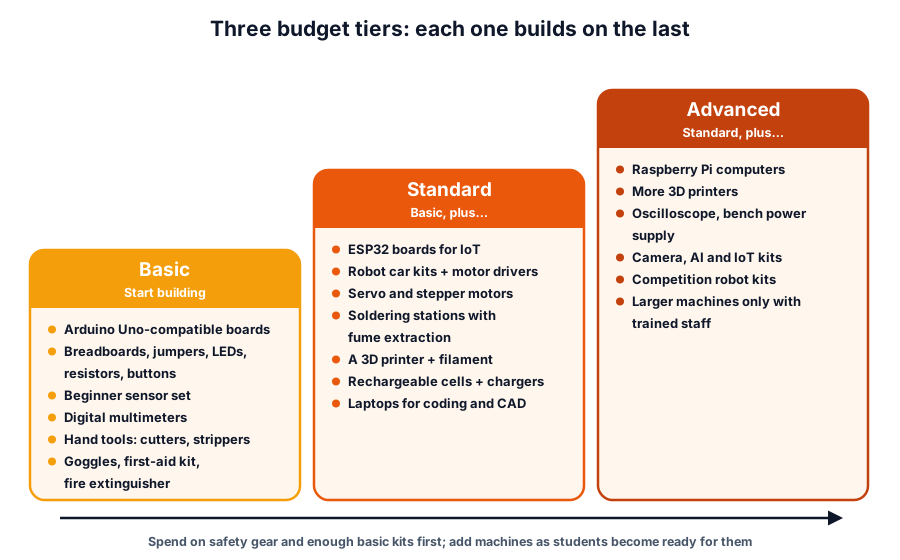 Start with enough basic kits for every team; add machines later
| Area | Basic | Standard | Advanced |
|---|---|---|---|
| Boards | Arduino Uno-compatible, one per team | + ESP32 boards | + Raspberry Pi computers |
| Kits | Breadboard starter kits | + robot car kits, motor drivers | + competition robot kits |
| Sensors | Beginner sensor set | + soil, gas, PIR, displays | + camera and AI modules |
| Making | Hand tools, glue guns | + soldering stations, one 3D printer | + more printers |
| Measuring | Digital multimeters | + more multimeters | + oscilloscope, bench power supply |
| Power | AA cells and holders | + rechargeable cells and chargers | + spare packs per robot |
| Safety | Goggles, first-aid kit, extinguisher | + fume extraction, heat-proof mats | + extra signage and training |
For the 3D printer, free browser-based design tools such as Tinkercad let Class 6–8 students start designing on day one.
Atal Tinkering Lab layout
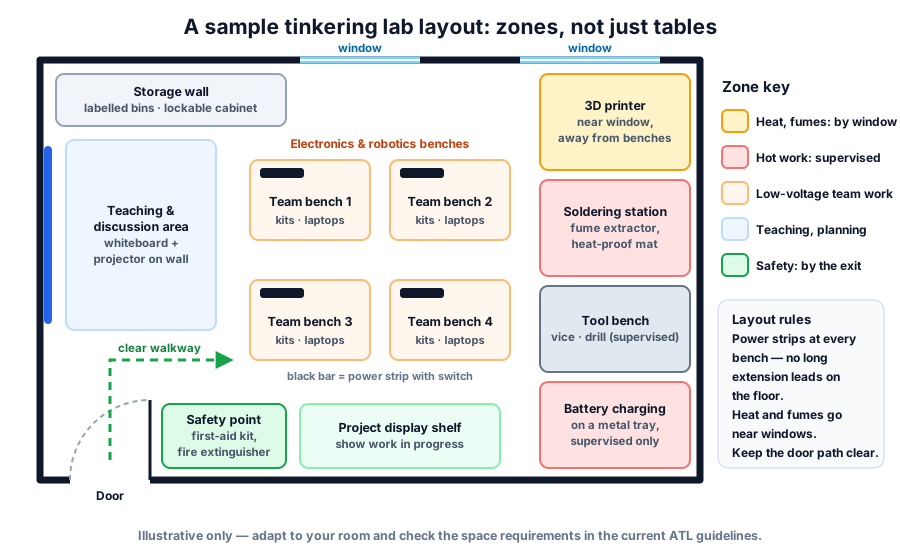 Zone the room: low-voltage work in the middle, heat and fumes near windows, safety by the exit
A good layout keeps students safe and makes it easy to reset the room between periods.
- Team benches in the middle, each with its own switched power strip. Avoid long extension leads across the floor.
- Heat and fumes near windows: the 3D printer and soldering station.
- Battery charging on a non-flammable surface, only while an adult is present.
- Storage along one wall: labelled bins for parts and a lockable cabinet for tools and batteries.
- A safety point by the door with a first-aid kit and a fire extinguisher suitable for electrical fires (CO₂ or ABC dry powder).
- A display shelf for projects in progress — it motivates the next batch.
Safety and storage
| Hazard | Rule in our lab |
|---|---|
| Soldering iron (tip often above 300 °C) | Use a stand, goggles and fume extraction; switch off when away |
| 3D printer (nozzle around 200 °C for PLA) | Do not leave printing unattended; keep it ventilated |
| Lithium cells (18650, LiPo) | Proper charger only, never charge unattended, store in a cool box |
| Glue guns, cutters, drills | Demonstrate first; power tools only with an adult |
| Mains (230 V) | Students never work on mains; projects use batteries or 5–12 V adapters |
| Small parts and coin cells | Keep away from younger children; count parts back in |
Battery safety is covered in detail in our robot battery guide.
Storage that survives a school year: label every bin with a photo and name, keep a simple inventory register, use a check-out sheet for kits that leave the room, and run a five-minute "count back" at the end of each session.
How to run sessions across classes
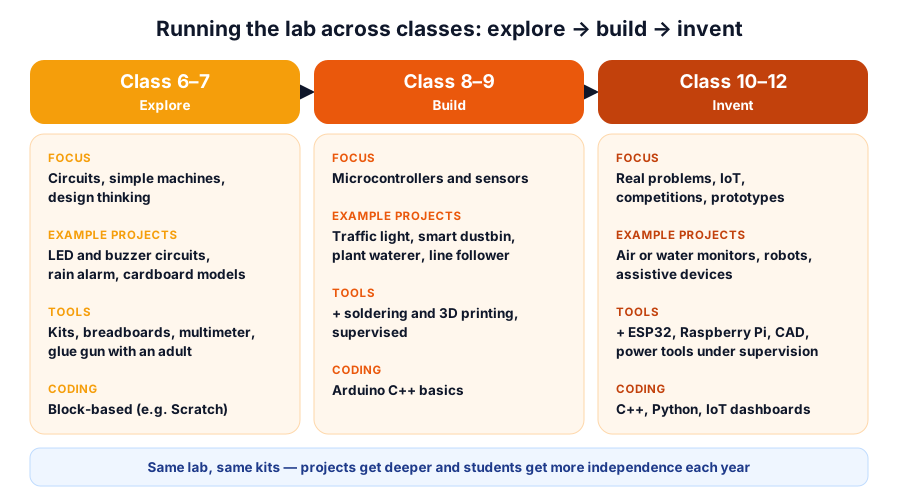 Same lab, deeper projects each year
| Part of a 40-minute period | Minutes | What happens |
|---|---|---|
| Recap and goal | 5 | One question about last week; today's target on the board |
| Demo | 5 | Teacher shows the one new idea |
| Build | 20 | Teams build and test; teacher moves bench to bench |
| Share | 5 | One team explains a problem they solved |
| Tidy and count back | 5 | Parts back in labelled bins |
Use double periods for longer builds where your timetable allows. Keep a lab logbook per team so work carries over between weeks. Science-exhibition season is a natural goal — see our school science exhibition project ideas.
Hands-on: a first session plan (automatic night lamp)
This works for Class 7–9 in one period, and it uses only basic-tier parts.
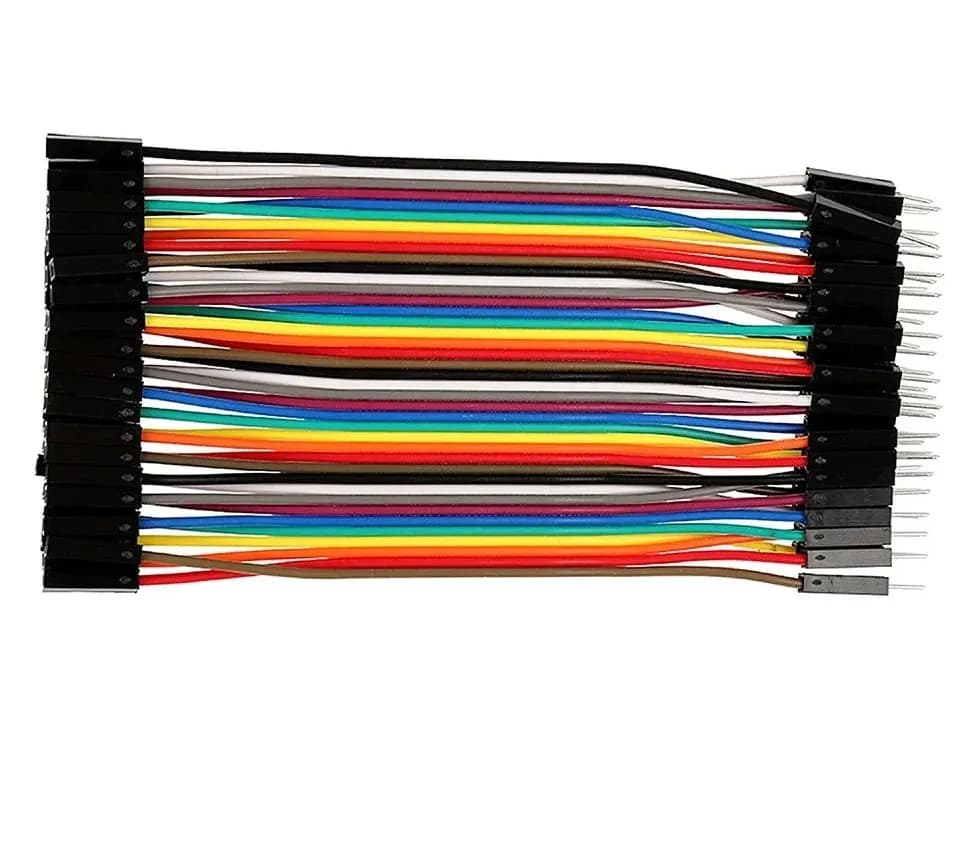
Each team needs: an Arduino Uno-compatible board with USB cable, a breadboard, an LDR, a 10 kΩ resistor, an LED, a 220 Ω resistor and jumper wires.
- Connect 5V → LDR → A0, and A0 → 10 kΩ → GND. This voltage divider gives a higher reading in bright light.
- Connect pin 9 → 220 Ω → LED long leg, and the LED's short leg to GND.
- Upload the sketch below and open the Serial Monitor at 9600 baud.
- Cover the LDR with a hand and note the reading; then set
DARK_THRESHOLDbetween the bright and dark values. - Ask each team: where would this be useful? (Street lights, staircases, garden lamps.)
const int LDR_PIN = A0;
const int LED_PIN = 9;
const int DARK_THRESHOLD = 300;   // set this from your own Serial Monitor readings

void setup() {
  pinMode(LED_PIN, OUTPUT);
  Serial.begin(9600);
}

void loop() {
  int light = analogRead(LDR_PIN);   // 0 (dark) to 1023 (bright)
  Serial.println(light);
  if (light < DARK_THRESHOLD) {
    digitalWrite(LED_PIN, HIGH);     // dark: lamp on
  } else {
    digitalWrite(LED_PIN, LOW);      // bright: lamp off
  }
  delay(200);
}
The LED current is about (5 − 2) ÷ 220 ≈ 13.6 mA — check other LEDs with the LED resistor calculator. For more first projects in a sensible order, use our Arduino projects for beginners; for Wi-Fi projects in senior classes, see ESP32 project ideas for students.
How Thinking Robot can help
Thinking Robot is a Pune-based electronics and robotics store. Schools can:
- Choose ready-made electronics, IoT and robotics kits for team-based sessions.
- Buy boards, sensors, motors and tools in the quantities they need from our products catalogue, including larger quantities for a full lab.
- Book hands-on workshops for students and teachers to help a new ATL in-charge get started.
Frequently asked questions
Which schools can set up an Atal Tinkering Lab with AIM support?
Eligibility is defined in AIM's current ATL guidelines and application notices, which change over time. Check aim.gov.in for the latest criteria and application process before you plan.
Can a school build a tinkering lab without the ATL grant?
Yes. Any school can set up a tinkering lab from its own budget, starting with the basic tier in this guide and adding equipment each year.
Do we need a 3D printer from day one?
No. Electronics kits, sensors and tools give students months of projects. Add a 3D printer in the standard tier, once students can design and use parts in their prototypes.
Which microcontroller should an ATL start with?
An Arduino Uno-compatible board. It runs on 5 V like most beginner modules and has the most tutorials. Add ESP32 boards when senior students start Wi-Fi and IoT projects.
How many students can share one kit?
We suggest teams of three or four per kit. Larger teams leave some students watching rather than building.
Thinking Robot Team
Thinking Robot is a team of engineers and educators in Pune who design electronics and robotics kits and run hands-on workshops for students and schools. Spotted a mistake or have a question? Get in touch.