🧩20 Arduino Projects for Beginners (With Parts List, Wiring & Code)
Twenty beginner Arduino projects in the order to build them, each with a parts list and what it teaches, plus full wiring diagrams and working code for the first two projects.
In this article (13)
- What you need before project 1
- 20 Arduino projects for beginners with parts list
- Build in this order: the learning path
- Project 1: Blink an external LED
- Project 2: Push-button LED
- Tips for projects 3–20
- Which board and kit should you start with?
- Frequently asked questions
- What is the easiest Arduino project for a complete beginner?
- Do I need to know C++ before starting?
- Can I do these projects with an Arduino Nano instead of an Uno?
- Why does my LED need a resistor?
- How long does it take to finish all 20 projects?
Searching for Arduino projects for beginners with a parts list usually gives you a random pile of ideas, half of which need parts you do not have. This guide is different: 20 projects in the order we suggest you build them, each with exactly what you need and what it teaches, plus full wiring and code for your first two.
The best first Arduino projects are Blink an external LED, a push-button LED and a traffic light, because they need only an Arduino Uno, a breadboard, a few LEDs, 220 Ω resistors and one button. Build them in this order — outputs, inputs, analog and PWM, sensors, libraries and displays, then motors — and each project reuses what you learned in the one before.
What you need before project 1
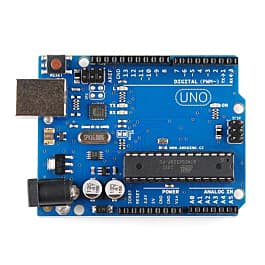
You need an Arduino Uno (or a compatible Uno board), a USB cable, the free Arduino IDE and a small set of components. The table shows which parts get reused the most, so you know what is worth buying in extra quantity.
| Part | Quantity | Used in projects |
|---|---|---|
| Arduino Uno R3 (or compatible) + USB cable | 1 | All |
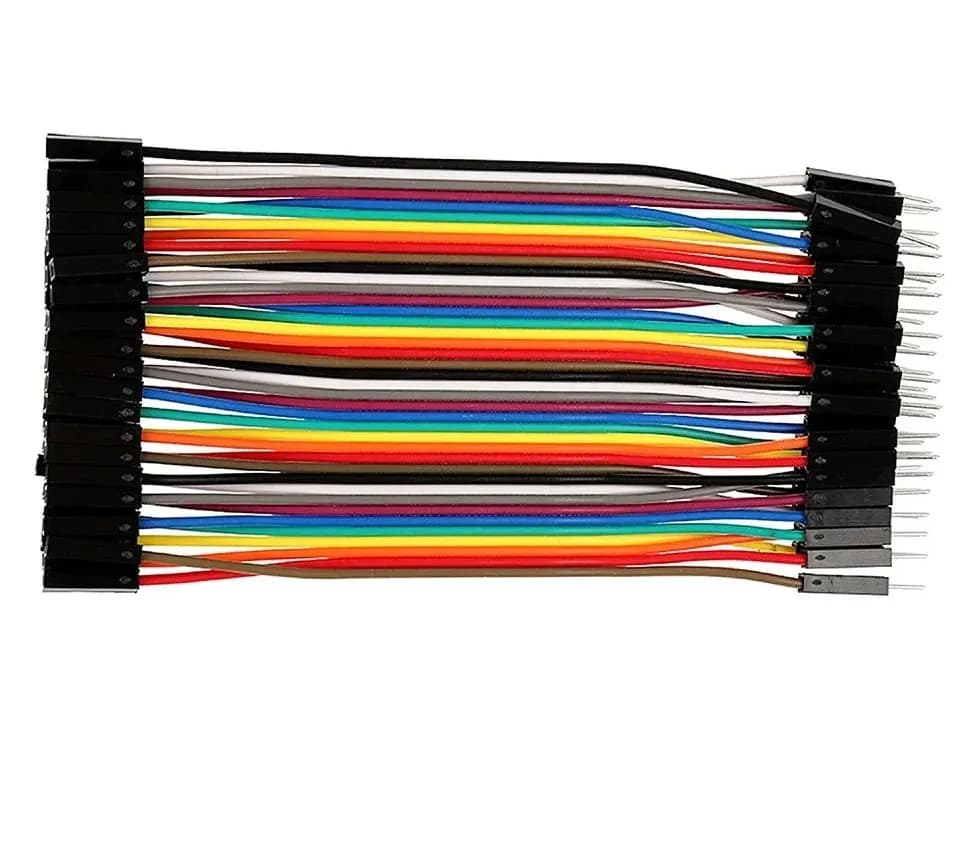
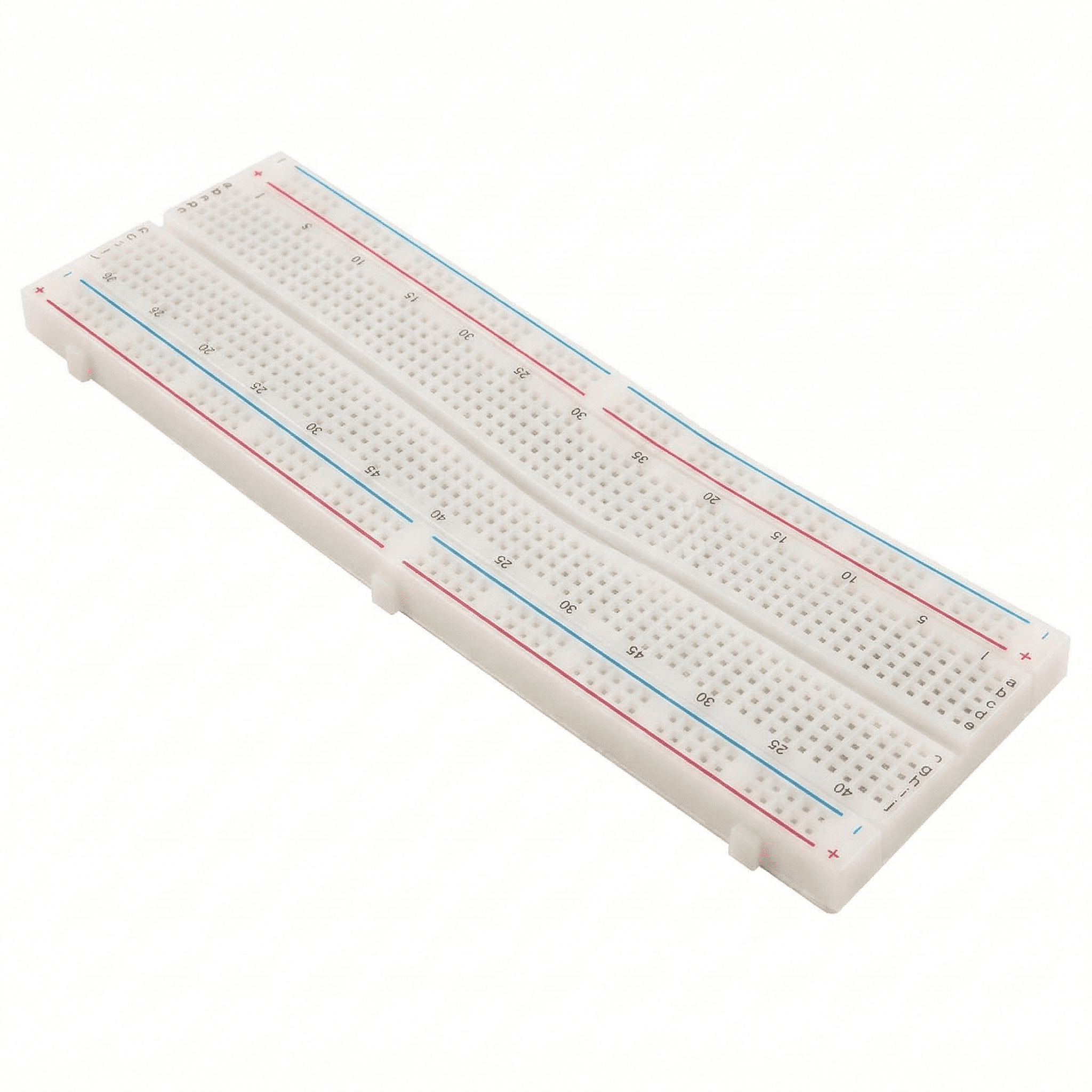
| Breadboard (400 or 830 points) + jumper wires | 1 set | All |
| 5 mm LEDs (red, yellow, green) | 10 | 1–6, 10, 13, 18 |
| 220 Ω resistors | 10 | Every LED project, 15 |
| 10 kΩ resistors | 5 | 6 (LDR divider) |
| Tactile push buttons | 3 | 2, 10, 15 |
| 10 kΩ potentiometer | 1 | 5, 14 |
| LDR (light-dependent resistor) | 1 | 6 |
| Common-cathode RGB LED | 1 | 7 |
| Passive buzzer | 1 | 8, 12 |
A good Arduino starter kit usually covers this list. If you are choosing one, our Arduino starter kit buying guide explains what to look for. Individual boards and parts are in the store under Arduino products.
20 Arduino projects for beginners with parts list
Each row lists the parts in addition to the Uno, breadboard and jumper wires. "What it teaches" is the one new idea to focus on.
| # | Project | Extra parts | What it teaches |
|---|---|---|---|
| 1 | Blink an external LED | 1 LED, 1 × 220 Ω | pinMode, digitalWrite, delay |
| 2 | Push-button LED | Push button, LED, 220 Ω | digitalRead, INPUT_PULLUP, if |
| 3 | Traffic light | Red, yellow, green LEDs, 3 × 220 Ω | Sequences and timing |
| 4 | LED fade (breathing light) | LED, 220 Ω on pin 9 | PWM with analogWrite, for loops |
| 5 | Potentiometer dimmer | 10 kΩ pot, LED, 220 Ω | analogRead, map(), Serial Monitor |
| 6 | Night lamp with LDR | LDR, 10 kΩ, LED, 220 Ω | Voltage dividers, thresholds |
| 7 | RGB colour mixer | Common-cathode RGB LED, 3 × 220 Ω | Mixing colours with 3 PWM pins |
| 8 | Buzzer melody | Passive buzzer | tone(), frequencies, arrays |
| 9 | LM35 thermometer | LM35 sensor | Analog sensors, 10 mV per °C scaling |
| 10 | Reaction-time game | LED, 220 Ω, push button | millis(), random() |
| 11 | Ultrasonic distance meter | HC-SR04 | pulseIn, speed of sound |
| 12 | Parking sensor | HC-SR04, passive buzzer | Combining a sensor and an output |
| 13 | Soil moisture alarm | Soil moisture sensor module, LED, 220 Ω | Calibrating a sensor |
| 14 | Servo with a knob | SG90 servo, 10 kΩ pot | Servo library, angles |
| 15 | 7-segment counter | Common-cathode 7-segment display, 7 × 220 Ω, button | Arrays, bit patterns |
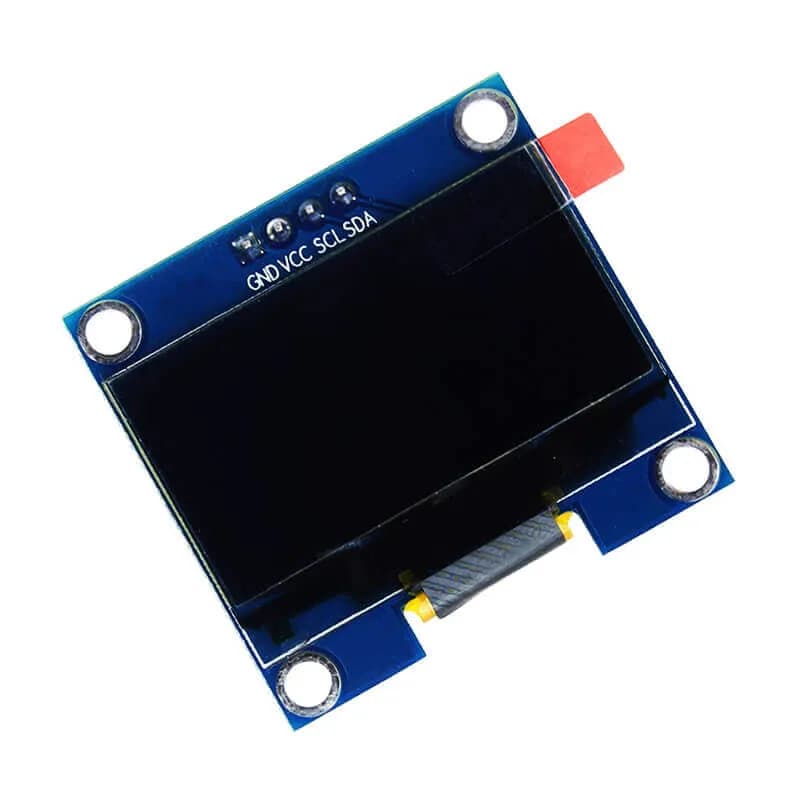
| 16 | I2C LCD "Hello, world" | 16×2 LCD with I2C backpack | I2C, installing libraries |
| 17 | DHT11 weather station | DHT11, I2C LCD | Combining modules |
| 18 | IR remote control | 38 kHz IR receiver (e.g. VS1838B), any TV remote, LEDs | Decoding signals with a library |
| 19 | DC motor speed and direction | L298N driver, 1 DC gear motor, battery pack | H-bridge, PWM speed control |
| 20 | Obstacle-avoiding robot car | Chassis, 2 gear motors, L298N, HC-SR04, battery pack | Putting it all together |
Helpful calculators along the way: LED resistor (projects 1–7), RGB LED colour mixer (7), ADC voltage (5, 9, 13), ultrasonic distance (11–12), servo pulse width (14) and the seven-segment encoder (15).
Build in this order: the learning path
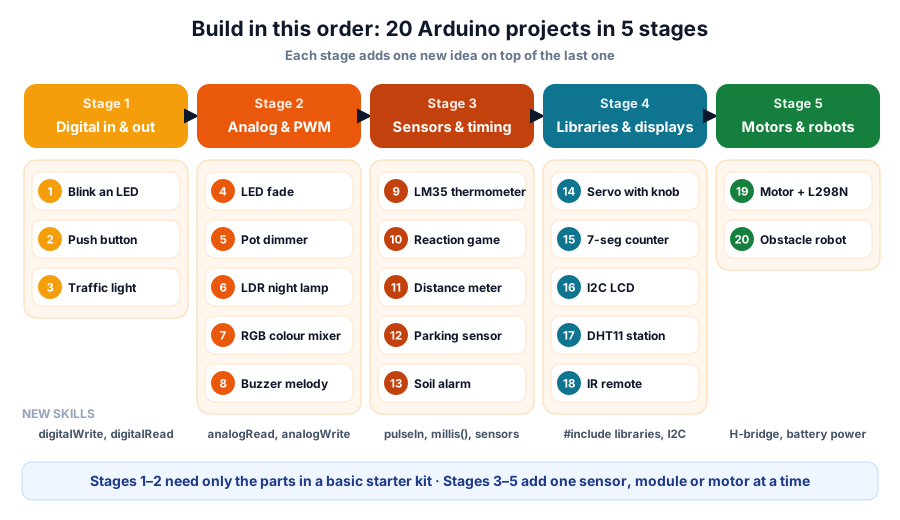 Finish a stage before moving on — each stage adds one new idea
Why this order? Each stage adds one new idea. You learn to control a pin before you read one, read a simple button before an analog sensor, and handle sensors before you add libraries. Motors come last because they bring the hardest problem for beginners: power. A motor can pull enough current to reset the board, which is easy to fix once you know why (see Arduino resets when the motor starts).
Project 1: Blink an external LED
Goal: make an LED on pin 8 switch on for half a second and off for half a second, forever.
Parts: 1 red LED, 1 × 220 Ω resistor (red-red-brown), 2 jumper wires.
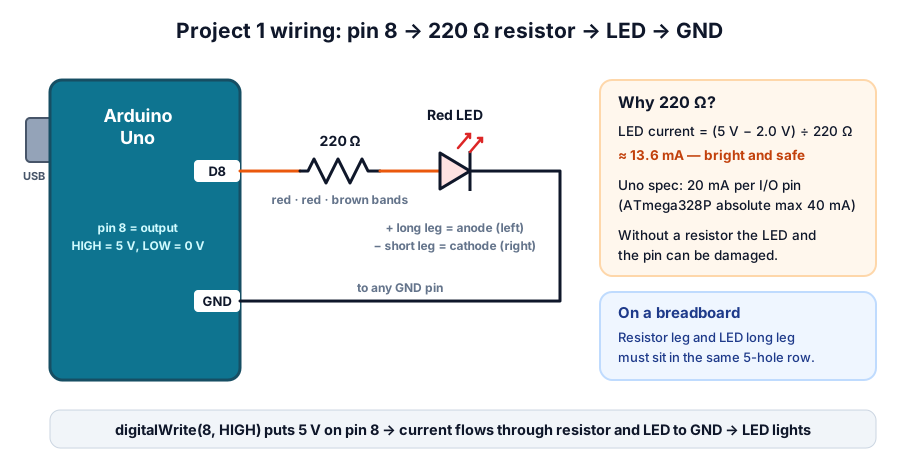 Pin 8 → 220 Ω → LED long leg; LED short leg → GND
Wiring steps
- Push the LED into the breadboard with its legs in two different rows. The long leg is the anode (+); the short leg (next to the flat edge of the rim) is the cathode (−).
- Put one leg of the 220 Ω resistor in the same row as the LED's long leg, and the other leg in an empty row.
- Run a jumper from pin 8 to the resistor's free row.
- Run a jumper from the LED's short-leg row to a GND pin on the Uno.
Code
// Project 1: blink an external LED on pin 8
const int LED_PIN = 8;

void setup() {
  pinMode(LED_PIN, OUTPUT);      // pin 8 will drive the LED
}

void loop() {
  digitalWrite(LED_PIN, HIGH);   // 5 V on pin 8: LED on
  delay(500);                    // wait 500 ms
  digitalWrite(LED_PIN, LOW);    // 0 V on pin 8: LED off
  delay(500);
}
How it works: setup() runs once and makes pin 8 an output. loop() repeats forever. When the pin is HIGH, current flows from pin 8 through the resistor and LED to GND.
Try next: change both delays to 100 ms, then make a pattern such as SOS (three short, three long, three short). The official Blink example explains the same sketch for the onboard LED on pin 13.
Project 2: Push-button LED
Goal: the LED lights while you hold the button, then upgrade it so each press toggles the LED on or off.
Parts: everything from project 1, plus 1 tactile push button and 2 more jumper wires.
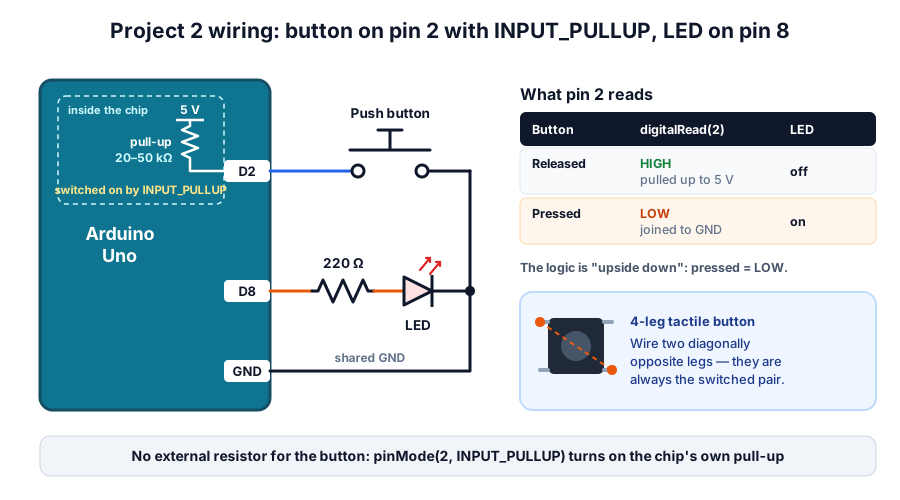 INPUT_PULLUP holds pin 2 HIGH; pressing the button pulls it LOW
Wiring steps
- Keep the LED and resistor from project 1 on pin 8.
- Place the button across the breadboard's centre gap.
- Connect pin 2 to one leg of the button and GND to the diagonally opposite leg. Diagonal legs are always the pair the button switches.
Code — hold to light
// Project 2a: LED on while the button is held
const int BUTTON_PIN = 2;
const int LED_PIN = 8;

void setup() {
  pinMode(BUTTON_PIN, INPUT_PULLUP);  // internal pull-up: pin reads HIGH when released
  pinMode(LED_PIN, OUTPUT);
}

void loop() {
  if (digitalRead(BUTTON_PIN) == LOW) {  // pressed: the button connects pin 2 to GND
    digitalWrite(LED_PIN, HIGH);
  } else {
    digitalWrite(LED_PIN, LOW);
  }
}
Why INPUT_PULLUP? An input pin connected to nothing "floats" and reads random HIGHs and LOWs. INPUT_PULLUP switches on a resistor inside the ATmega328P (20–50 kΩ according to its datasheet) that holds the pin at 5 V. Pressing the button connects the pin straight to GND, so it reads LOW. That is why pressed = LOW in the code. The Arduino documentation on digital pins explains pull-ups in more detail.
Code — toggle with debounce
A button's metal contacts bounce for a few milliseconds, which the Uno sees as several presses. This version waits until the reading has been steady for 50 ms before accepting it.
// Project 2b: each press toggles the LED (with debounce)
const int BUTTON_PIN = 2;
const int LED_PIN = 8;
const unsigned long DEBOUNCE_MS = 50;

bool ledOn = false;
int lastReading = HIGH;      // last raw reading
int stableState = HIGH;      // last debounced state
unsigned long lastChange = 0;

void setup() {
  pinMode(BUTTON_PIN, INPUT_PULLUP);
  pinMode(LED_PIN, OUTPUT);
}

void loop() {
  int reading = digitalRead(BUTTON_PIN);
  if (reading != lastReading) {        // contacts moved: restart the timer
    lastChange = millis();
    lastReading = reading;
  }
  if (millis() - lastChange > DEBOUNCE_MS && reading != stableState) {
    stableState = reading;
    if (stableState == LOW) {          // a clean new press
      ledOn = !ledOn;
      digitalWrite(LED_PIN, ledOn ? HIGH : LOW);
    }
  }
}
Try next: add a second button that turns the LED off, or count presses and print the count with Serial.println().
Tips for projects 3–20
Most beginner problems repeat. Here is the usual cause and fix for each stage.
| Projects | Common problem | Usual fix |
|---|---|---|
| 3–4, 7 | LED stays dark or one colour missing | LED reversed, or resistor in the wrong row; PWM only works on pins 3, 5, 6, 9, 10, 11 |
| 5–6, 9, 13 | Reading stuck at 0 or 1023 | Middle pin of the pot or divider not on the analog pin; check 5V and GND |
| 8, 12 | Buzzer only clicks | You have an active buzzer; tone() needs a passive one |
| 11–12 | Distance always 0 | Trig and Echo swapped, or the sensor's VCC not on 5V |
| 14 | Board resets when the servo moves | Power the servo from a separate 5 V supply, common GND (see our SG90 servo guide) |
| 16–17 | LCD lights but shows nothing | Wrong I2C address (often 0x27 or 0x3F) or contrast pot turned fully |
| 19–20 | Motors twitch, board restarts | Separate motor battery, shared GND; see L298N vs TB6612FNG vs DRV8833 |
For the last two projects, our L298N robot car guide covers motor wiring and steering, and the HC-SR04 obstacle-avoiding robot guide gives complete code for project 20. For batteries, read the robot battery guide.
Which board and kit should you start with?
For these 20 projects, start with an Arduino Uno: it runs at 5 V like most beginner modules and has the largest number of tutorials. Move to an ESP32 when you want Wi-Fi or Bluetooth.
| If you… | Start with | Why |
|---|---|---|
| Are completely new | Uno + basic starter kit | Projects 1–8 need nothing else |
| Want sensors and displays | Uno + sensor kit | Adds the HC-SR04, DHT11, LCD and servo for projects 9–18 |
| Want a robot soon | Uno + robot car kit | Chassis, motors and L298N for projects 19–20 |
| Want Wi-Fi projects | ESP32 board | See 25 ESP32 project ideas |
Not sure about Uno versus ESP32 or Pico? Compare them in Arduino vs ESP32 vs Raspberry Pi Pico. Parts are available at /products?search=arduino, sensors, servos and motor drivers, or as complete kits.
Frequently asked questions
What is the easiest Arduino project for a complete beginner?
Blinking an external LED (project 1). It needs one LED, one 220 Ω resistor and four lines of code inside loop(), and it proves your board, wiring and upload all work.
Do I need to know C++ before starting?
No. Arduino sketches use a simplified C++, and you learn it project by project: pinMode and digitalWrite in project 1, if in project 2, loops in project 4, arrays in projects 8 and 15.
Can I do these projects with an Arduino Nano instead of an Uno?
Yes. The classic Nano uses the same ATmega328P chip, so the code is identical. Only the pin positions differ, and you select "Arduino Nano" in the IDE.
Why does my LED need a resistor?
An LED has very little resistance once it switches on, so without a resistor the current rises until the LED or the Arduino pin is damaged. A 220 Ω resistor limits a red LED to about 13.6 mA at 5 V.
How long does it take to finish all 20 projects?
It depends on how much time you spend. Many learners do one or two projects per sitting in stages 1 and 2, then spend longer on stages 4 and 5 where libraries and motors are involved. Building them in order matters more than speed.
Thinking Robot Team
Thinking Robot is a team of engineers and educators in Pune who design electronics and robotics kits and run hands-on workshops for students and schools. Spotted a mistake or have a question? Get in touch.