🧩Breadboard Basics for Beginners: How a Breadboard Works + 3 First Circuits (for Kids 10+ and Parents)
How a breadboard is connected inside, how to place chips and jumper wires, and three first circuits — an LED, a push button, and LEDs in series vs parallel — with a troubleshooting table.
In this article (17)
- How a breadboard is connected inside
- Common breadboard sizes
- Placing a chip (IC) the right way
- Jumper wire tips
- What you need for the three circuits
- Circuit 1: light an LED
- Circuit 2: add a push button
- Circuit 3: two LEDs in series and in parallel
- Troubleshooting: my circuit does not work
- Safety for young makers
- What to build next
- Frequently asked questions
- Why is it called a breadboard?
- Can a breadboard get damaged?
- What age is right to start with a breadboard?
- Do I need to solder after using a breadboard?
- Why does my circuit work only when I press on the parts?
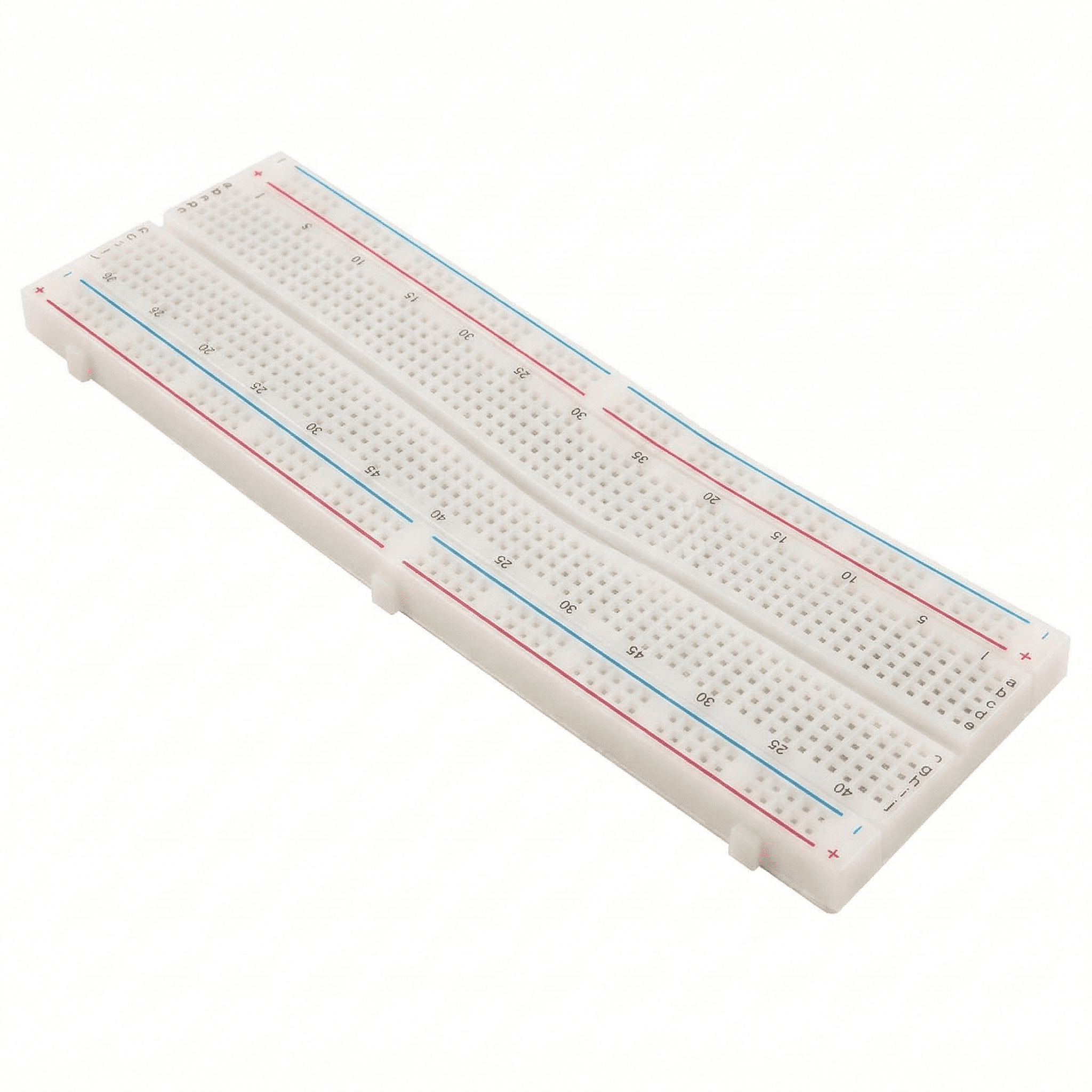
The first time you open an electronics kit, the white board full of tiny holes can look confusing. That board is a breadboard, and it is the best friend of every beginner. It lets you build real circuits by simply pushing parts into holes — no soldering, no tools, and you can undo any mistake in a second.
This guide is written for young makers aged 10 and up and the parents helping them. In about an hour you will learn how a breadboard is connected inside, how to place parts and chips correctly, and you will build three circuits: a glowing LED, a push-button light, and two LEDs connected in series and in parallel.
How a breadboard is connected inside
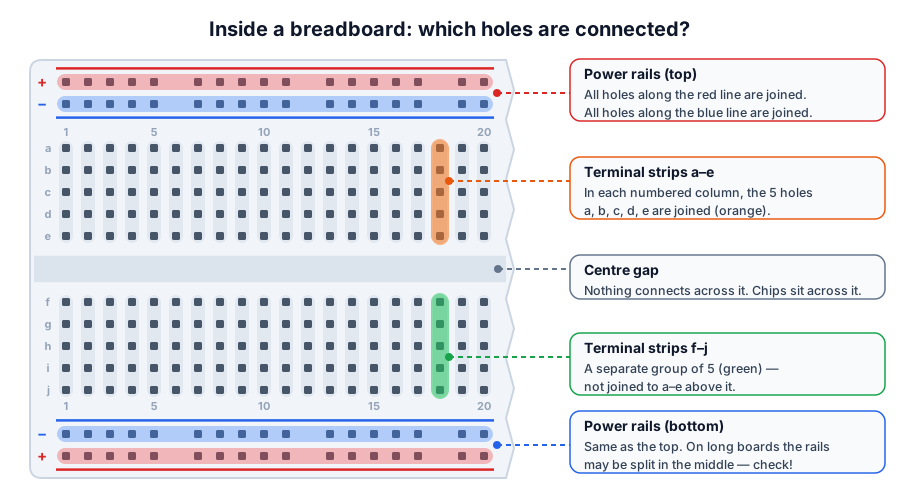 Under the plastic, metal clips join the holes in these groups. Nothing connects across the centre gap.
Under the plastic are springy metal clips. When you push a wire or a component leg into a hole, the clip grips it and connects it to every other hole on the same clip. Once you know which holes share a clip, breadboards become easy.
| Part of the breadboard | Which holes are connected | What it is used for |
|---|---|---|
| Power rails (red + and blue − lines) | All holes along one line | Bringing battery + and − to every part of the board |
| Terminal strips a–e | The 5 holes in one numbered line | Joining component legs and wires |
| Terminal strips f–j | The 5 holes in one numbered line (a separate group) | Same, on the other half |
| Centre gap | Nothing — it is a break | Placing chips so each pin gets its own strip |
Common breadboard sizes
| Size | Tie points (holes) | Power rails | Good for |
|---|---|---|---|
| Mini | 170 | None | Tiny circuits, sensor modules |
| Half size | 400 | 2 pairs | Beginner kits, Arduino projects |
| Full size | 830 | 2 pairs (often split in the middle) | Bigger projects with several chips |
Placing a chip (IC) the right way
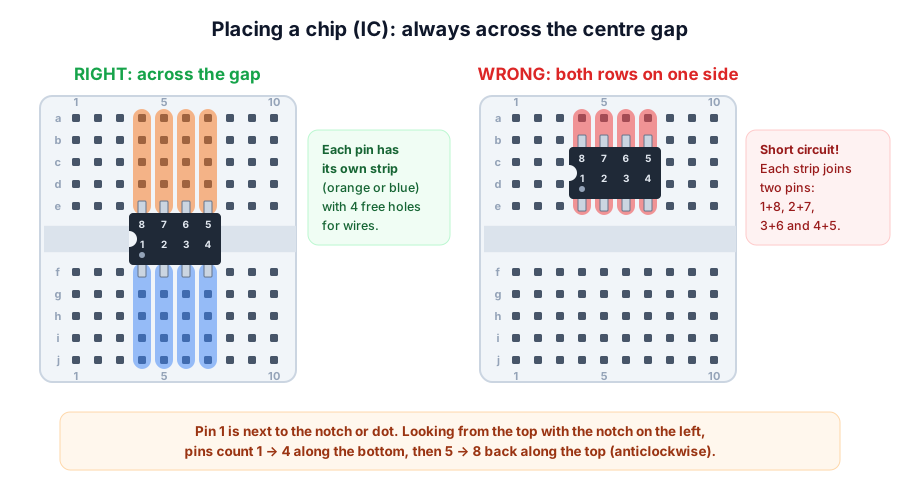 Across the gap, every pin has its own strip. On one side, pins are shorted together in pairs.
Chips such as the 555 timer come in a package with two rows of legs called a DIP (dual in-line package). The two rows are exactly as far apart as the centre gap, so the chip fits across it. Each pin then sits in its own strip, with four free holes for wires.
- Find pin 1: it is next to the notch or a small dot on top of the chip.
- Straighten the legs gently against the table if they are splayed outwards.
- Line the legs up over the holes on both sides of the gap and press down evenly with your thumb.
- To remove it, lever it up from both ends with a flat screwdriver or an IC puller, so the legs do not bend.
Jumper wire tips
- Use colours with meaning: red for +, black (or blue) for −, and other colours for signals. When something goes wrong, you can follow the wires easily.
- Keep wires short and flat. A tidy board is much easier to check than a "bird's nest".
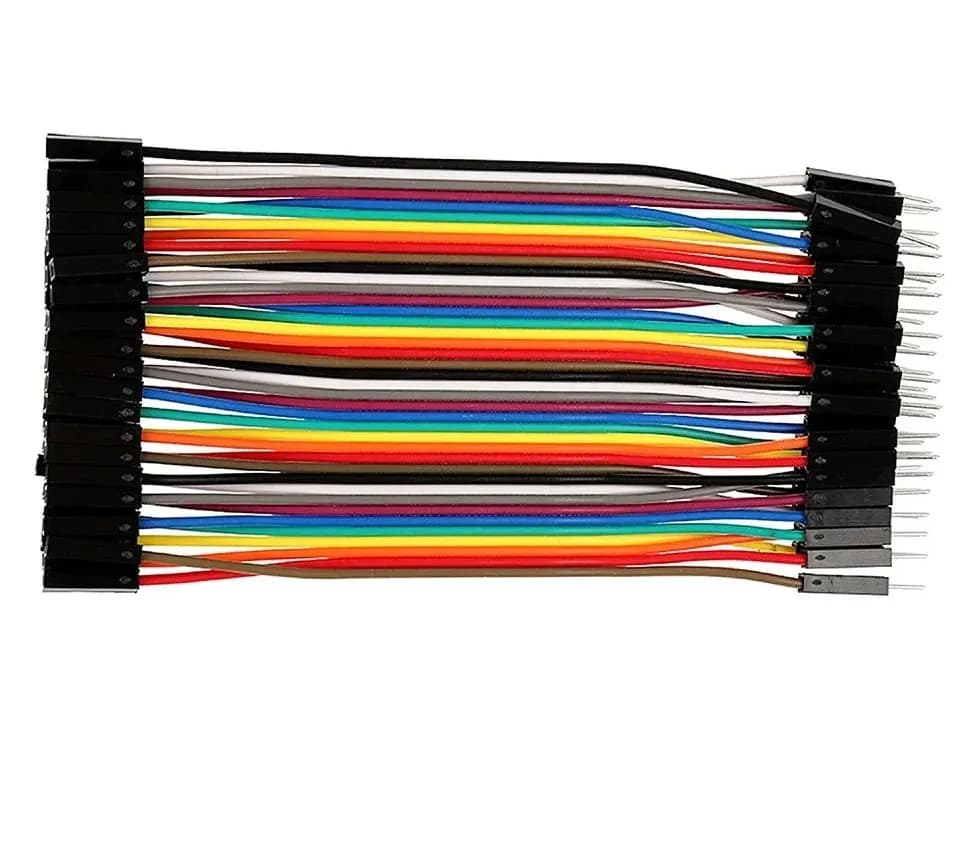
- Use solid-core wire, not stranded wire — strands fray and do not grip. Ready-made male-to-male jumper wires are easiest.
- Push straight in, about 5–6 mm deep. If a leg will not go in, do not force it; thick legs can stretch the clips.
- Trim long LED and resistor legs so parts sit close to the board — but keep the LED's long leg slightly longer so you still know which is which.
What you need for the three circuits
| Part | Quantity | Notes |
|---|---|---|
| Half-size breadboard | 1 | 400 tie points |
| 9 V battery with snap clip | 1 | Red wire is +, black wire is − |
| Red 5 mm LEDs | 2 | A green LED also works for circuit 3 |
| 470 Ω resistors | 2 | Colour bands: yellow, violet, brown, gold |
| Push button (4-leg tactile switch) | 1 | 6 mm size fits the gap |
| Jumper wires | 6–8 | Male-to-male |
Not sure about the colour bands? Check them with the resistor colour code calculator.
Circuit 1: light an LED
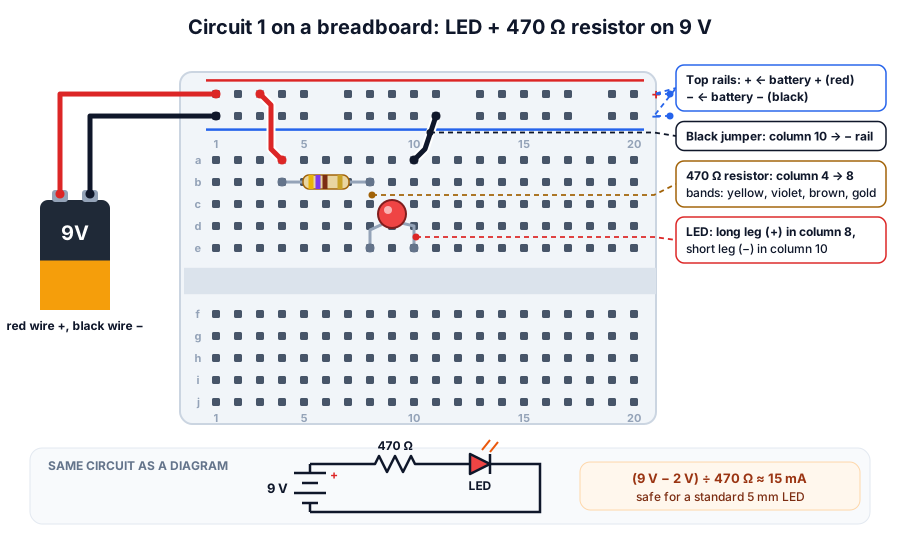 Follow the path: + rail → resistor → LED → − rail. The numbered strips join each part to the next.
- Connect the battery clip: red wire into the + rail, black wire into the − rail. Leave the battery unclipped for now.
- Add a short red jumper from the + rail into column 4.
- Place the 470 Ω resistor from column 4 to column 8 (either way round is fine).
- Place the LED with its long leg (+) in column 8 and its short leg (−) in column 10.
- Add a black jumper from column 10 to the − rail.
- Clip on the battery. The LED lights up!
Circuit 2: add a push button
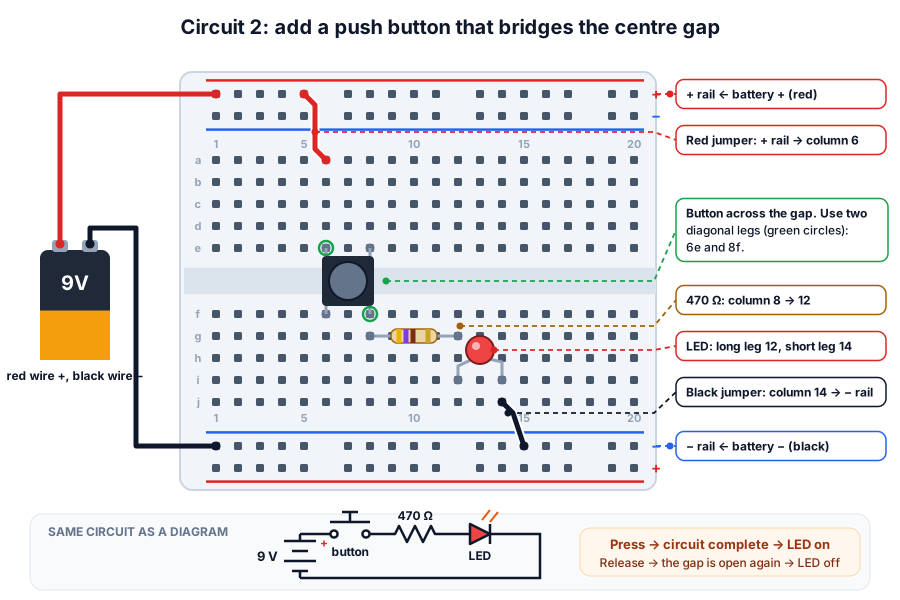 Pressing the button bridges the gap between column 6 (top half) and column 8 (bottom half)
A push button is a gap in the circuit that you can close with your finger.
- Connect the battery red wire to the top + rail and the black wire to the bottom − rail.
- Place the push button across the centre gap, with legs in 6e, 8e, 6f and 8f.
- Add a red jumper from the top + rail into column 6 (top half).
- Place the 470 Ω resistor from column 8 to column 12 in the bottom half.
- Place the LED with the long leg in column 12 and the short leg in column 14.
- Add a black jumper from column 14 to the bottom − rail.
- Press the button: the LED lights. Let go: it goes off.
Circuit 3: two LEDs in series and in parallel
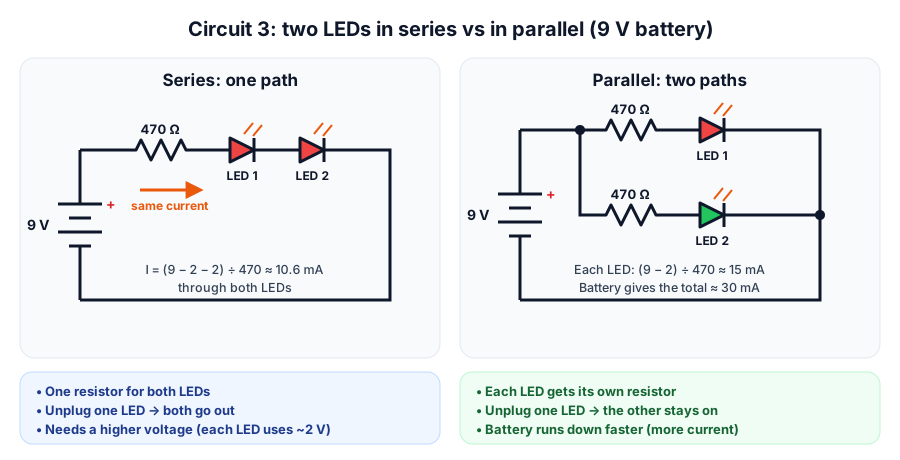 Series: one path, the same current through both LEDs. Parallel: two paths, each LED with its own resistor.
Series (one after the other): start from circuit 1. Move the black jumper away from column 10, add a second LED with its long leg in column 10 and its short leg in column 12, then connect column 12 to the − rail. Both LEDs glow a little dimmer.
Parallel (side by side): keep circuit 1 as it is and build a second, identical path further along the board: a red jumper from the + rail to column 15, a 470 Ω resistor from 15 to 19, an LED with its long leg in 19 and short leg in 21, and a black jumper from column 21 to the − rail.
| Series | Parallel | |
|---|---|---|
| Paths for current | One | Two |
| Current through each LED | (9 − 2 − 2) ÷ 470 ≈ 10.6 mA | (9 − 2) ÷ 470 ≈ 15 mA |
| Total current from the battery | ≈ 10.6 mA | ≈ 30 mA |
| Remove one LED | Both go out | The other stays on |
| Resistors needed | One | One per LED |
Experiment: pull one LED out in each circuit and see what happens. This is exactly why the lights in your home are wired in parallel — one bulb failing does not switch off the others.
Troubleshooting: my circuit does not work
| Problem | Most likely cause | Fix |
|---|---|---|
| LED does not light | LED is the wrong way round | Long leg towards +, short leg towards − |
| Nothing works at all | Battery not reaching the rails, or a flat battery | Check the clip wires are in the rails; try a new battery |
| Works on one half of the board only | Power rails split in the middle | Add jumpers to join the rail halves |
| A part does nothing | Both its legs are in the same 5-hole strip | Move one leg to a different numbered line |
| LED stays on even without pressing the button | The two button legs you used are always joined inside | Use two diagonally opposite legs |
| LED very dim | Resistor value too high (check bands) or weak battery | 470 Ω = yellow-violet-brown |
| Loose, flickering connection | Leg not pushed in deep enough | Push parts in firmly, about 5 mm |
Safety for young makers
- Use only batteries or USB power. Never connect a breadboard to a wall socket.
- Do not connect the battery's + and − directly together with a wire. The wire and battery get hot.
- Unclip the battery before changing parts.
- Resistor and LED legs are sharp when trimmed — point them down into a bin, and wear safety glasses when cutting.
- Keep small parts and coin cells away from younger children; a swallowed coin cell is a medical emergency.
- An adult should be around for a child's first circuits.
What to build next
Once you can read a breadboard, you can build almost anything. Try a rain alarm or an LED blinker from our electronics experiments for kids, learn the maths in Ohm's law explained, or pick your first microcontroller with Arduino vs ESP32 vs Raspberry Pi Pico and learn to dim LEDs in PWM explained. Breadboards, LEDs, resistors and jumper wires are all in our beginner kits and parts store, and our Pune team runs hands-on workshops for schools and groups.
Frequently asked questions
Why is it called a breadboard?
Early radio builders fixed their circuits to wooden boards — sometimes literally kitchen boards used for cutting bread. The name stuck for today's plastic plug-in boards.
Can a breadboard get damaged?
Yes. Forcing thick wires or legs into the holes stretches the metal clips so they no longer grip. Heat from soldering irons can also melt the plastic. Used gently, a breadboard lasts for years.
What age is right to start with a breadboard?
Most children can use a breadboard from about 10 years old with an adult nearby, as long as they work with a 9 V battery or USB power. Younger children often start with snap-together circuit kits.
Do I need to solder after using a breadboard?
No. Many projects stay on a breadboard forever. When you want a permanent version, you can move the same circuit to a perfboard or a printed circuit board and solder it.
Why does my circuit work only when I press on the parts?
That is a loose connection. A leg is not pushed in deep enough, or a clip has been stretched by a thick wire. Move the part to a fresh set of holes.
Try the calculators
NTC Thermistor Calculator (Beta Equation)
Convert NTC thermistor resistance to temperature and back with the Beta equation, or turn an Arduino ADC reading from a divider into °C.
Series and Parallel Resistor Calculator
Add up to 8 resistors in series or parallel, see how voltage and current split, and find the missing resistor for a target value.
Seven-Segment Display Encoder
Design any 7-segment character by tapping segments and get its byte in hex and binary for common cathode or anode, plus a ready Arduino array.
Capacitor Code Calculator
Decode ceramic and film capacitor codes like 104, 473J or 2A104K into pF, nF and µF with tolerance and voltage — or turn a value into its code.
Thinking Robot Team
Thinking Robot is a team of engineers and educators in Pune who design electronics and robotics kits and run hands-on workshops for students and schools. Spotted a mistake or have a question? Get in touch.