📈PWM Explained: Duty Cycle, LED Dimming and Motor Speed Control with Arduino and ESP32
How pulse width modulation works — duty cycle, frequency and average voltage — with analogWrite() and ESP32 LEDC code, an LED dimmer, and safe MOSFET motor speed control.
In this article (15)
- What is PWM?
- PWM on Arduino: analogWrite()
- PWM on ESP32: the LEDC peripheral
- Experiment 1: measure PWM with a multimeter
- Experiment 2: an LED dimmer with a knob
- Why does a PWM LED look smooth?
- Experiment 3: control a motor's speed
- Common PWM mistakes
- What to build next
- Frequently asked questions
- What is a good PWM frequency for LEDs and motors?
- Does PWM save power compared with a resistor?
- Why does my motor not move at low PWM values?
- Can I use analogWrite() on an ESP32?
- Is PWM the same as the signal that controls a servo?
An Arduino pin can only be fully on (5 V) or fully off (0 V). Yet the same pin can dim an LED smoothly, set the speed of a robot's motors and fade a lamp in and out. The trick behind all of this is PWM — pulse width modulation.
This guide explains PWM from scratch: duty cycle, frequency and average voltage, how to use it with analogWrite() on Arduino and the LEDC peripheral on ESP32, and how to drive a small motor safely with a MOSFET and a flyback diode. Three hands-on experiments let you see — and measure — every idea.
What is PWM?
Imagine flicking a light switch on and off ten times a second, keeping it on for one quarter of each flick. The room would flicker. Now do it 500 times a second: your eyes can no longer follow, and the room simply looks dimmer — about a quarter as much light. That is PWM.
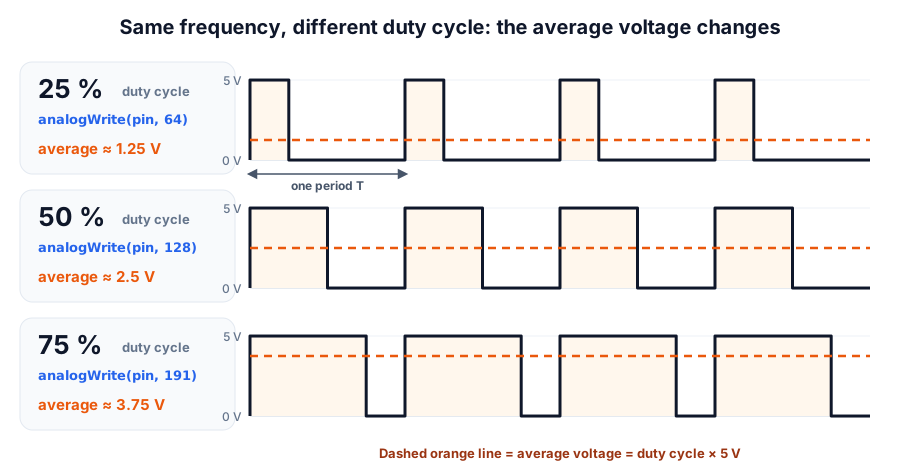 Wider pulses mean a higher average voltage. The frequency stays the same.
Three words describe every PWM signal:
| Term | Meaning | Example (Uno pin 9, analogWrite(9, 64)) |
|---|---|---|
| Period (T) | Time for one complete on + off cycle | 2.04 ms |
| Frequency (f) | Cycles per second, f = 1 ÷ T | 490 Hz |
| Duty cycle (D) | On-time ÷ period, as a percentage | 0.51 ms ÷ 2.04 ms = 25 % |
| Average voltage | D × high voltage | 0.25 × 5 V = 1.25 V |
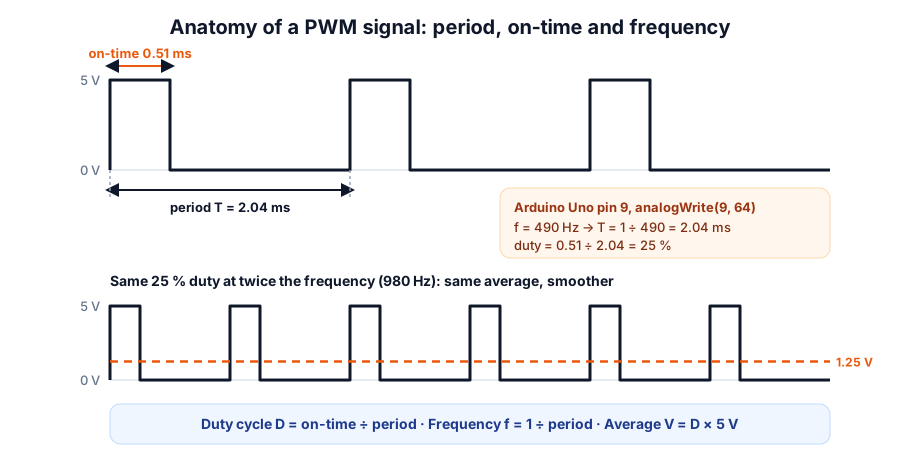 Duty cycle sets the average; frequency sets how fast the pulses repeat
The key idea: duty cycle controls how much power, frequency controls how smooth it is. Doubling the frequency does not change the average — it just makes the pulses shorter and closer together. Use the PWM duty cycle calculator to convert between on-time, period, frequency and average voltage.
PWM on Arduino: analogWrite()
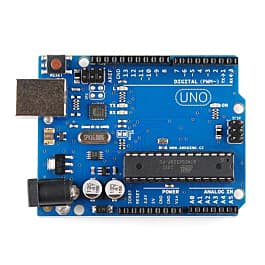
On the Arduino Uno, analogWrite(pin, value) takes a value from 0 to 255 (8-bit) and produces PWM on the pins marked with a ~.
| Value | Duty cycle | Average voltage (5 V board) |
|---|---|---|
| 0 | 0 % | 0 V (always off) |
| 64 | 25.1 % | 1.25 V |
| 128 | 50.2 % | 2.51 V |
| 191 | 74.9 % | 3.75 V |
| 255 | 100 % | 5 V (always on) |
The duty cycle is simply value ÷ 255.
| Uno pins | PWM frequency | Timer used | Things that clash |
|---|---|---|---|
| 5, 6 | about 980 Hz | Timer 0 | Also runs millis() and delay() — don't change its settings |
| 9, 10 | about 490 Hz | Timer 1 | The Servo library disables PWM on these pins |
| 3, 11 | about 490 Hz | Timer 2 | tone() interferes with PWM on these pins |
PWM on ESP32: the LEDC peripheral
The ESP32 has a dedicated PWM block called LEDC with 16 channels. Unlike the Uno, you choose both the frequency and the resolution (number of bits). In the current Arduino-ESP32 core (version 3.x), it takes two functions:
const int LED_PIN = 2;      // on-board LED on many ESP32 DevKit boards
const int FREQ = 5000;      // 5 kHz PWM
const int RESOLUTION = 8;   // 8 bits: duty from 0 to 255

void setup() {
  ledcAttach(LED_PIN, FREQ, RESOLUTION);
}

void loop() {
  for (int duty = 0; duty <= 255; duty++) {   // fade in
    ledcWrite(LED_PIN, duty);
    delay(6);
  }
  for (int duty = 255; duty >= 0; duty--) {   // fade out
    ledcWrite(LED_PIN, duty);
    delay(6);
  }
}
Two differences to remember: ESP32 pins are 3.3 V, so 50 % duty averages 1.65 V, not 2.5 V. And frequency and resolution trade off against each other — on the classic ESP32, frequency × 2^bits must stay within the 80 MHz timer clock, so 8-bit PWM can go up to about 312 kHz but 10-bit only about 78 kHz.
| Arduino Uno | ESP32 (LEDC) | |
|---|---|---|
| Logic level | 5 V | 3.3 V |
| PWM pins | 6 fixed pins (3, 5, 6, 9, 10, 11) | Almost any output GPIO |
| Default frequency | about 490 / 980 Hz | You choose (e.g. 5 kHz for LEDs, 20 kHz for motors) |
| Resolution | 8-bit (0–255) | You choose; 8 to 13 bits is typical |
Experiment 1: measure PWM with a multimeter
You need: an Arduino Uno and a multimeter.
- Upload a sketch with
pinMode(9, OUTPUT); analogWrite(9, 64);insetup(). - Set the multimeter to DC volts and measure between pin 9 and GND.
- You should read close to 1.25 V. Change the value to 128 and 191 and compare with the table above.
What you learn: the pin is never actually at 1.25 V — it is jumping between 0 V and 5 V — but the meter (and an LED, and a motor) responds to the average.
Experiment 2: an LED dimmer with a knob
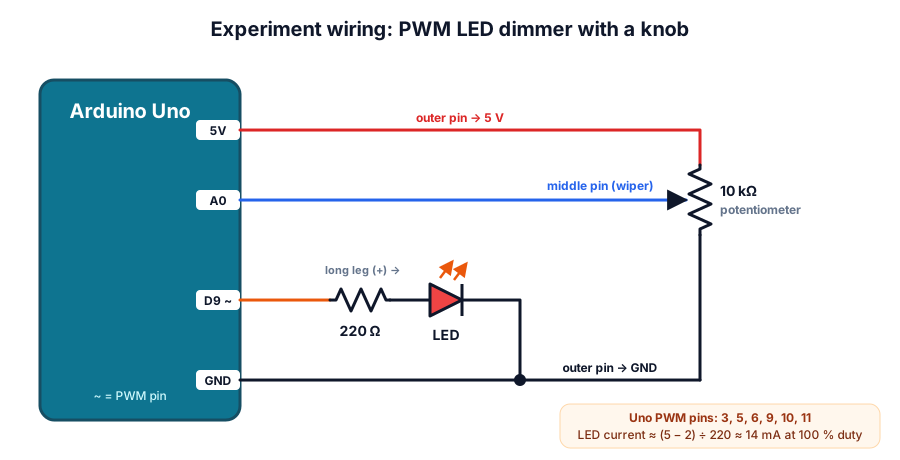 Turn the knob: A0 reads 0–1023, the code scales it to 0–255 for analogWrite on pin 9
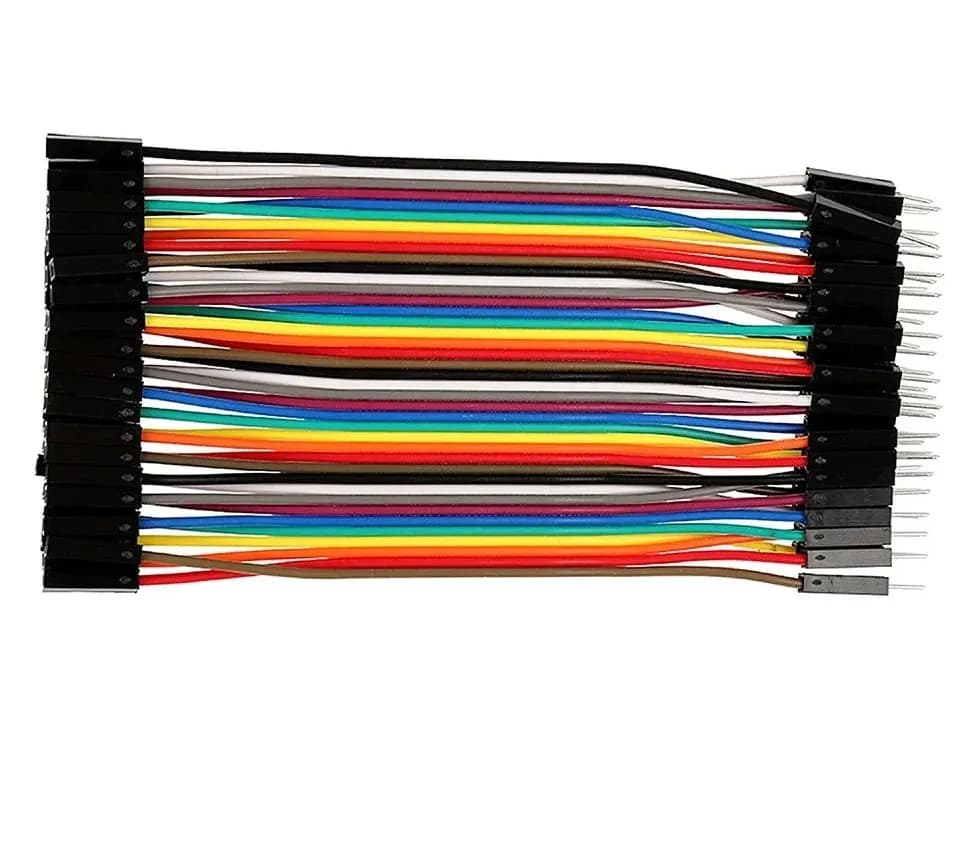
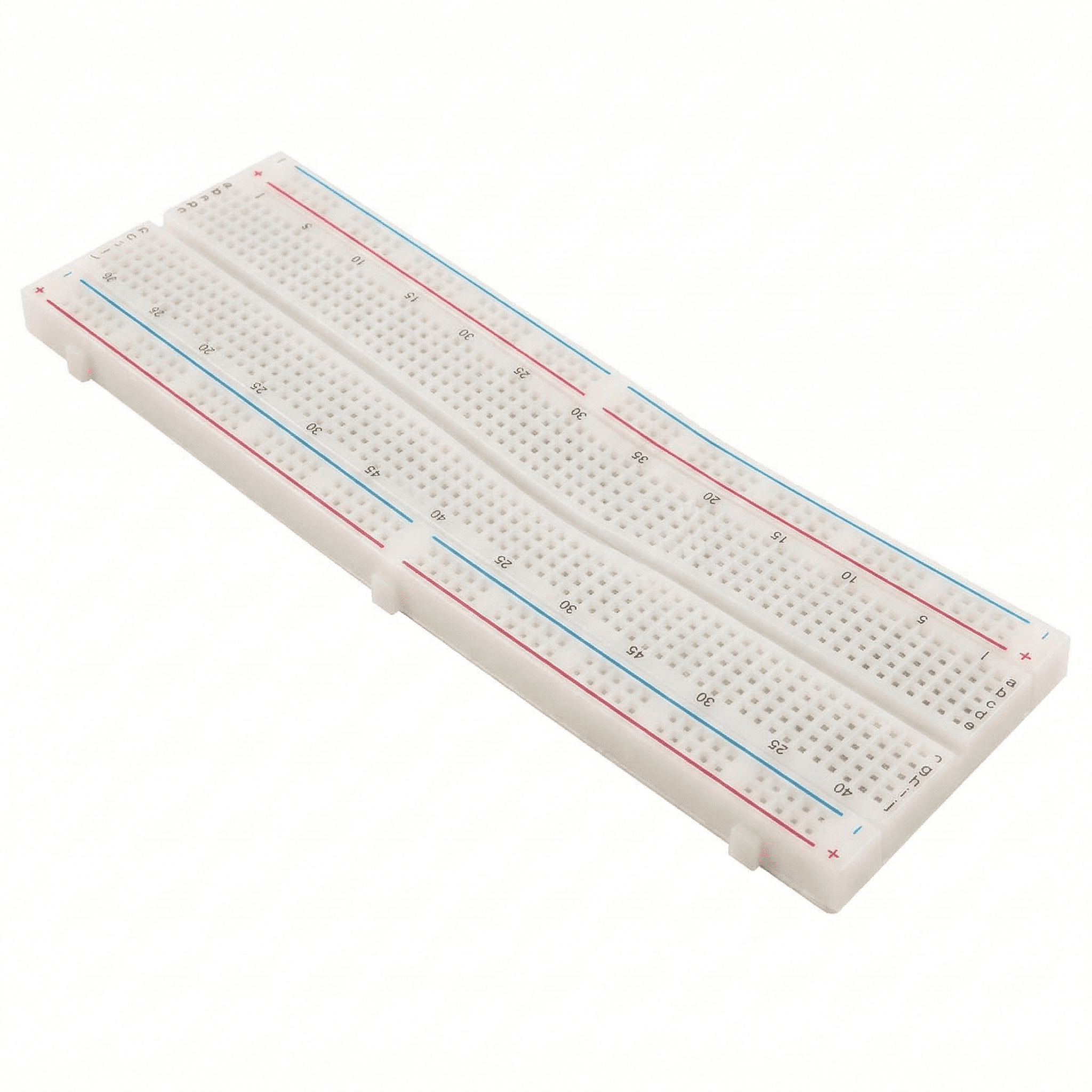
You need: an Arduino Uno, a breadboard, an LED, a 220 Ω resistor, a 10 kΩ potentiometer and jumper wires.
- Connect D9 → 220 Ω → LED long leg, and the LED short leg to GND. The resistor limits the current to about (5 − 2) ÷ 220 ≈ 14 mA — check other LEDs with the LED resistor calculator.
- Connect the potentiometer's outer pins to 5V and GND, and its middle pin to A0.
- Upload this sketch and open the Serial Monitor at 9600 baud.
const int LED_PIN = 9;     // must be a PWM pin (marked ~)
const int POT_PIN = A0;

void setup() {
  pinMode(LED_PIN, OUTPUT);
  Serial.begin(9600);
}

void loop() {
  int reading = analogRead(POT_PIN);   // 0 to 1023
  int duty = reading / 4;              // 0 to 255
  analogWrite(LED_PIN, duty);

  Serial.print("analogWrite value: ");
  Serial.print(duty);
  Serial.print("  duty cycle: ");
  Serial.print(duty * 100L / 255);
  Serial.println(" %");
  delay(100);
}
- Turn the knob slowly and watch the brightness and the duty cycle change together.
What you will notice: the LED looks almost fully bright at 50 % and changes most at the low end. Your eyes are far more sensitive to small changes in dim light than in bright light. That is why lighting products use gamma correction, spending more of the 0–255 range on the dim end.
Why does a PWM LED look smooth?
An LED switches on and off in well under a microsecond, so it really is flashing 490 times a second. Your eye and brain, however, blend fast flashes into a steady average brightness — the same reason a film made of still frames looks like smooth motion.
| PWM frequency | What you notice with an LED |
|---|---|
| Below about 50 Hz | Clear flicker |
| About 100 – 500 Hz | Looks steady when still; you may see a dotted trail if you wave it, and stripes on a phone camera |
| 1 kHz and above | Smooth for the eye and most cameras |
Experiment 3: control a motor's speed
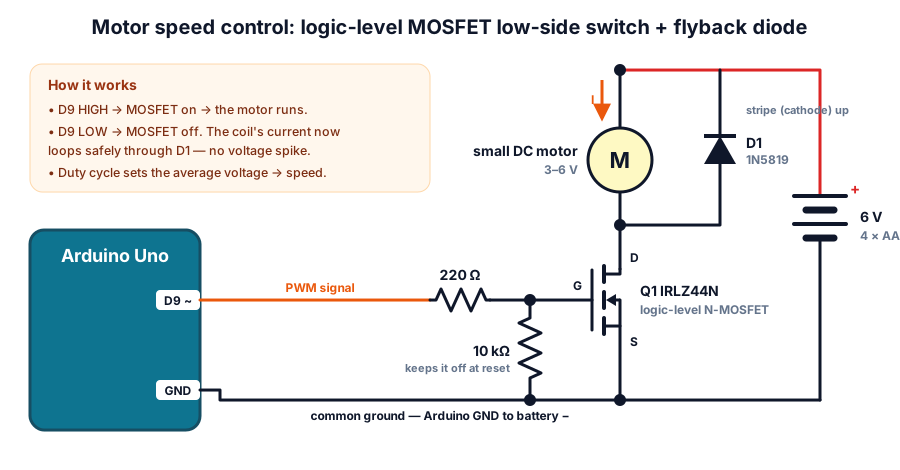 Low-side MOSFET switch. The diode's stripe (cathode) goes to the + side of the motor.
A small DC motor can draw 100 – 300 mA while running and much more when starting — far above the 20 mA an Uno pin is happy with. So the pin only controls a MOSFET, and the MOSFET switches the motor's own battery.
You need: a small 3 – 6 V DC motor, a 4 × AA battery holder (6 V), a logic-level N-channel MOSFET such as the IRLZ44N, a 1N5819 Schottky diode (a 1N4007 also works at these low PWM frequencies), resistors of 220 Ω and 10 kΩ, and jumper wires.
- Identify the MOSFET legs: holding the IRLZ44N with its writing towards you, the legs are Gate, Drain, Source from left to right.
- Connect Source to GND. Connect the battery − to the same GND, and the Arduino GND too — this common ground is essential.
- Connect the motor between battery + and the MOSFET Drain.
- Connect the diode across the motor: the striped end (cathode) to battery +, the other end to the Drain. Reversed, it would short the battery every time the MOSFET turns on.
- Connect D9 → 220 Ω → Gate, and a 10 kΩ resistor from Gate to GND so the motor stays off while the Arduino boots.
- Upload the sketch, open the Serial Monitor (9600 baud, "Newline"), and type speeds from 0 to 255.
const int MOTOR_PIN = 9;   // PWM pin to the MOSFET gate (via 220 ohm)

void setup() {
  pinMode(MOTOR_PIN, OUTPUT);
  analogWrite(MOTOR_PIN, 0);
  Serial.begin(9600);
  Serial.println("Type a speed from 0 to 255 and press Enter");
}

void loop() {
  if (Serial.available() > 0) {
    int speed = Serial.parseInt();
    speed = constrain(speed, 0, 255);
    analogWrite(MOTOR_PIN, speed);
    Serial.print("Speed set to ");
    Serial.print(speed);
    Serial.print(" (");
    Serial.print(speed * 100L / 255);
    Serial.println(" %)");
    while (Serial.available() > 0) Serial.read();   // discard the rest of the line
  }
}
What you will notice: below a certain value (often 60 – 100) the motor only hums — it needs a minimum average voltage to overcome friction. Many robots give a short burst at full power to get the motor moving, then drop to the slow speed. You may also hear a faint 490 Hz whine; on an ESP32 you can move the PWM to 20 kHz, above the range of human hearing.
This circuit only changes speed. To make a motor go forwards and backwards you need an H-bridge — see our guide to the L298N motor driver and robot car, which uses exactly the same analogWrite() speed control.
Common PWM mistakes
| Mistake | What happens | Fix |
|---|---|---|
analogWrite() on a non-PWM pin (e.g. pin 7 on Uno) | Pin is simply on (value ≥ 128) or off | Use a pin marked ~ |
| Motor connected straight to the pin | Arduino resets or the pin is damaged | Use a MOSFET, transistor or motor driver |
| No flyback diode across the motor | Random resets, dead MOSFET | Diode across the motor, stripe to + |
| No common ground | Motor never switches on, or behaves randomly | Join Arduino GND and battery − |
| Non-logic-level MOSFET (e.g. IRF540N) on 5 V | MOSFET half on, gets hot | Use a logic-level part like the IRLZ44N |
| Servo library and PWM on pins 9/10 | analogWrite() stops working | Move PWM to pins 3, 5, 6 or 11 |
| Expecting 50 % to look half as bright | LED looks nearly full brightness | Use gamma correction or more steps at the low end |
What to build next
PWM is everywhere: LED strips, fan controllers, servo motors (which read the width of a 50 Hz pulse), audio and power supplies. Good next steps:
- Pair it with a capacitor to make a smooth analog voltage — see capacitors explained and the RC filter cut-off calculator.
- Build a two-wheel robot with speed control in our L298N robot car guide.
- Get Arduino and ESP32 boards, motors and drivers from our robotics kits and components store.
Frequently asked questions
What is a good PWM frequency for LEDs and motors?
For LEDs, anything above about 500 Hz looks steady to the eye; 1 – 5 kHz is a safe choice that also avoids stripes on phone cameras. For small DC motors, the Uno's default 490 Hz works but whines; 15 – 25 kHz is silent if your board and driver support it.
Does PWM save power compared with a resistor?
Yes. A resistor dims an LED or slows a motor by turning the extra energy into heat. A PWM switch is either fully on or fully off, so very little power is wasted in the switch itself.
Why does my motor not move at low PWM values?
At low duty cycles, the average voltage is too low to overcome the motor's friction and the load. Find the lowest value that still turns it (often 60 – 100 on a 0–255 scale) and treat that as zero speed in your code.
Can I use analogWrite() on an ESP32?
Yes. Recent Arduino-ESP32 cores support analogWrite() using LEDC in the background. Use ledcAttach() and ledcWrite() directly when you need to set a specific frequency or resolution.
Is PWM the same as the signal that controls a servo?
Not quite. A hobby servo receives a pulse about every 20 ms (50 Hz), and the width of the pulse — roughly 1 to 2 ms — sets the angle, not the average voltage. Use the Arduino Servo library rather than analogWrite() for servos — our SG90 servo guide explains how.
Try the calculators
PWM Duty Cycle Calculator
Convert duty cycle % to Arduino analogWrite and ESP32 LEDC values, and get period, on-time, off-time and average voltage with a live waveform.
Servo Pulse Width Calculator
Convert servo angle to pulse width (µs) and back for SG90 and standard servos, with duty cycle, writeMicroseconds and ESP32 LEDC values.
RC Filter Cutoff Frequency Calculator
Find the cutoff frequency of an RC low-pass or high-pass filter, solve for R or C, and see the gain in dB at any frequency on a Bode plot.
RGB LED Color Mixer
Mix any colour and get hex, RGB565, Arduino PWM values for common-cathode or common-anode RGB LEDs, resistor values and ready-to-copy code.
Thinking Robot Team
Thinking Robot is a team of engineers and educators in Pune who design electronics and robotics kits and run hands-on workshops for students and schools. Spotted a mistake or have a question? Get in touch.