💻Try Arduino Free Before Buying: Tinkercad Circuits for Kids, Explained for Parents
Let your child build Arduino circuits in a free simulator first. Account set-up for under-13s, five exercises, limits and a ready-to-buy test.

In this article (11)
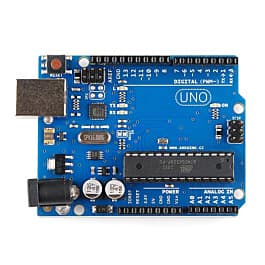
Tinkercad Circuits is a free simulator from Autodesk where children can wire a virtual Arduino Uno, code it with blocks or text and see it run, with nothing to buy and nothing to burn. Try it for a few weekends. If your child comes back on their own, a kit is a safer purchase.
What you need
- A Windows, Mac or ChromeOS computer with a current Chrome, Edge or Safari. Phones are not supported.
- Or an iPad with the Tinkercad app, which includes Circuits and needs internet.
- Some English reading. Hindi and Marathi were not in the language menu when we checked.
It is free, and Tinkercad says accounts are open to tinkerers of all ages.
Setting up for a child under 13
- The child signs up with a username, password and a parent's email. The account is restricted until a parent or teacher approves it, with 14 days to do so.
- The parent opens the approval email, makes their own Tinkercad account, then prints, signs and uploads a form (steps). Review takes one to three days after that.
- Or a teacher shares a class code and a nickname, so the child needs no account of their own. Autodesk explains this on its children's privacy page.
The age rule can depend on the country, and Tinkercad's own pages differ slightly, so follow what the sign-up screen says. Do this before promising the child a Sunday session.

Five exercises, in order
| Exercise | Learns | Done when |
|---|---|---|
| 1. Light one LED from a battery and resistor | A closed loop | They can say why the resistor is there |
| 2. Blink an LED from the Uno | Output and delay | They change the speed unaided |
| 3. Traffic light with three LEDs | Order | The sequence is right |
| 4. Button controls the light | Input | They can explain "if" |
| 5. Break it on purpose | Debugging | They read the warning and fix it |
Exercise 5 is the best one. Tinkercad warns about reversed parts and weak power. Nothing gets hot and nothing is wasted.
Use Blocks first, then Blocks + Text, then Text. All three are in the code editor.
What it cannot teach
- Hands. Loose wires, tiny legs, parts in backwards.
- Real behaviour. Autodesk says results are approximate, and timing or specialised parts may differ.
- Every board. The Arduino Uno and micro:bit are named. Do not expect ESP32.
- Every library. Only built-in ones are sure to work.

Is your child ready for a real kit?
Give one point each:
- Opened it again without being asked.
- Finished exercise 4.
- Explained a mistake they fixed.
- Suggested their own idea.
- Can work with small parts for 30 minutes.
4 or 5: a starter kit is reasonable. See our Arduino kit buying guide. 2 or 3: another month of simulation. 0 or 1: try something else and save the money.
From screen to table
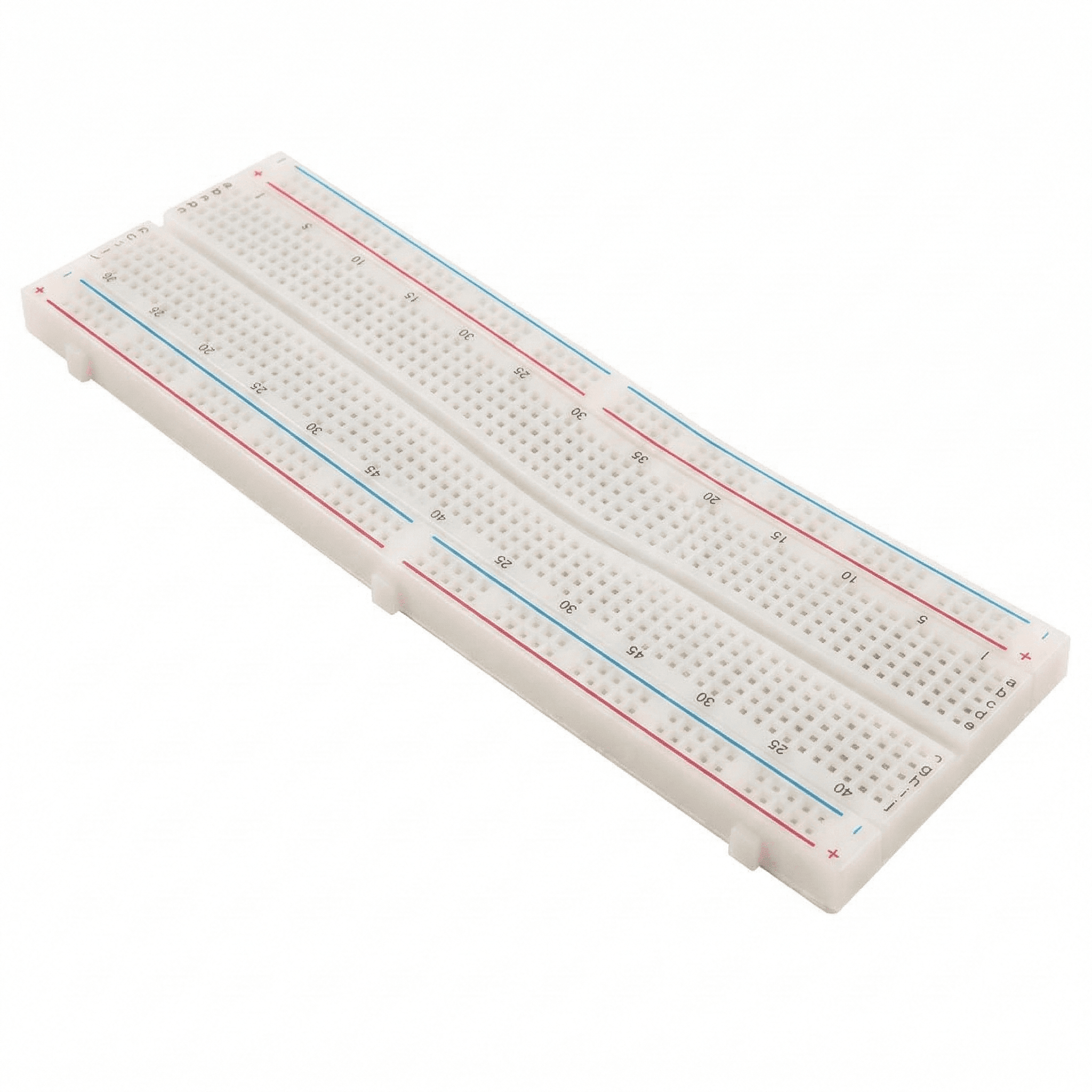
Build the same circuit they already simulated, with an adult nearby. Code can be exported to the Arduino editor. Our breadboard basics and first LED blink guides help.
Frequently asked questions
Is Tinkercad safe for children?
It has child accounts and class codes. Set it up together and read the privacy page.
Can it replace a kit?
For logic and circuits, for a while. It cannot replace building.
Does it work on a phone?
No. Use a computer, or an iPad with the app.
How long before buying?
Three or four weekends is usually enough to see whether interest lasts.

Thinking Robot Team
Thinking Robot is a team of engineers and educators in Pune who design electronics and robotics kits and run hands-on workshops for students and schools. Spotted a mistake or have a question? Get in touch.